
Documentation
Conference theme
A HubSpot theme designed to promote events: conferences, courses, summits, webinar series, trade shows... etc.
🏆 2nd prize winner of the HubSpot Themes Challenge 2021
Getting started
Where do I find my theme after downloading it?
Once you've installed the theme from the HubSpot Marketplace, there are two places to find it:
- Your downloads: click the Marketplace icon in HubSpot's top navigation bar, then select Marketplace Downloads. From here you can edit the theme settings, uninstall the theme or open its support links.
- The theme files: click More, then go to Content > Design Manager. The theme is in the @marketplace folder in the left sidebar.
Marketplace themes can't be edited directly. If you want to change the code, create a child theme.
Link to this answer: Where do I find my theme after downloading it?Should I create a child theme?
Yes, before you build any pages. If you ever want to change the theme's files or code (new modules or templates, a fix from HubSpot Support or a developer, or a custom font), you'll need a child theme to do it.
If you think that at any point in the future you might want to customize the theme's code in any way (e.g. making small edits to the code, adding new templates or modules... etc.), I'd strongly recommend creating a child theme as a first step.
What is a child theme?
A child theme is a copy of the theme that you can customize without altering the parent theme. Because you're not able to edit Marketplace themes, a child theme is key for any future edits.
It's best to create it from the start, as otherwise you'll need to migrate any pages you've built in the future.
How do I create a child theme?
Follow the steps as outlined in HubSpot's documentation:
- In your HubSpot account, click More, then go to Content > Design Manager.
- In the finder, click the @marketplace folder for Marketplace themes or the @hubspot folder for default themes.
- Right click a theme folder, then select Create child theme.
- In the dialog box, enter a name for the child theme.
- To change where the child theme will be saved, click Change in the File location section. Click a folder, then click Select.
- To customize the names of the theme's CSS and JS files, click Advanced options, then enter new file names in the CSS and JS fields.
- To finish the process, click Create child theme. You can edit the styling for the child theme in the content editor.
Note: if you're a developer, you can find details on how to create a child theme using the CLI on HubSpot's documentation.
How do I use my child theme?
Once your child theme has been created, you should be able to find it when you create a page:
On the template selection screen, templates from your active theme will appear at the top of the page, while all other templates will be in the Other templates section at the bottom. If you haven’t selected an active theme, hover over a theme and click Set as active theme.Link to this answer: Should I create a child theme?
How do I create and edit pages?
HubSpot's drag-and-drop editor lets you click anywhere on a page to edit, rearrange, add or delete content.
To create a page, click More, go to Content > Website Pages, then click Create and choose one of the theme's templates (HubSpot's step-by-step guide).
Each page is built from:
- Sections: the containers that wrap your content. Hover over the bottom of a section and click "+" to add one of the theme's prebuilt sections or a layout. You can also save sections to reuse later. Each section has its own background (image, colour or gradient), spacing and alignment.
- Columns: arrange content side by side within a section.
- Rows: stack content within a section or column.
- Modules: where the content itself goes, such as text, images and forms. You'll find HubSpot's default modules (Rich Text, Image, Form…) alongside the theme's custom modules.
For more detail, read HubSpot's Edit content in the content editor. If you're new to HubSpot, the free Content Hub for Marketers course in HubSpot Academy is a good place to start.
Link to this answer: How do I create and edit pages?Theme settings
How do I configure my theme settings?
Configure your theme settings before you build pages. The colours in particular can look a little strange at first, because they're pulled from your brand kit.
You can open your theme settings from:
- Any page using the theme: open the page in the editor, click the Edit menu, then click Theme. Change what you need and click Publish theme.
- Your Marketplace downloads: click the Marketplace icon in the top navigation bar, select Marketplace Downloads, then Actions > Edit theme settings.
Theme settings let you customize the theme's colours, fonts, spacing, text, buttons, forms, tables, header and footer. Changes apply to every page using the theme.
Read HubSpot's "Edit theme settings" article.
Link to this answer: How do I configure my theme settings?How do I change my theme colours?
The theme has a set of global colours, such as Primary, Secondary, Text and a background colour, that update your whole website. You'll find them in your theme settings under Colors; the exact list depends on the theme.
When you install the theme, these start from the colours in your HubSpot brand kit. To see or change your brand kit, click More, go to Marketing > Brand, then on the Brand Kit tab click Edit next to Colors (HubSpot's guide).
The quickest way to get the colours you want is to set them directly in your theme settings under Colors. That overrides the brand kit for this theme only.
You can also change the website's background colour in theme settings under Website Body > Background.
Link to this answer: How do I change my theme colours?Which colours does the Conference theme use?
The Conference theme has 6 global colours. Change them in your theme settings under Colors, and every page using the theme updates:
- Black (#212529 on the demo): text. It doesn't have to be black.
- Primary (#FFBC42 on the demo): your main brand colour, used for buttons, links and highlights.
- Secondary (#1769D7 on the demo): an accent colour.
- Dark Grey (#495057 on the demo): minor highlights, such as the day of the week on agenda items.
- Light Grey (#F7F7F7 on the demo): backgrounds behind cards and sections.
- White (#FFFFFF on the demo): the website's background colour.
See them in use on the Conference demo website.
Link to this answer: Which colours does the Conference theme use?What does "rem" mean in my font sizes?
In some themes, you may find that some typography, such as headings, might be set to use "rem" instead of a value like "px".
What is a rem?
A rem is a measurement unit that is relative to the base font size in your theme (the size of a standard paragraph when you're typing into a Rich Text module or blog post, for example).
If your base font size is 16px, then:
- 0.5rem = 8px (0.5 x 16)
- 1rem = 16px (1 x 16)
- 1.5rem = 24px (1.5 x 16)
- 2rem = 32px (2 x 16)
- 2.75rem = 44px (2.75 x 16)
- ...etc.
And if your base font size is 20px, then:
- 0.5rem = 10px (0.5 x 20)
- 1rem = 20px (1 x 20)
- 1.5rem = 30px (1.5 x 20)
- 2rem = 40px (2 x 20)
- 2.75rem = 55px (2.75 x 20)
- ...etc.
Relative measurements are used by designers and developers because:
- They help create a consistent system for your typography and spacing
- They scale well, so if you want different font sizes on mobile and desktop, for example, you only need to change the base font size and all other font sizes will update accordingly
How do I update my font sizes using rem?
You can update your theme's font sizes from your theme settings. To open them, edit any page that uses the theme, click the Edit menu, then Theme.
Within your theme settings there should be a "Text" item under which you'll see options to customize Headings 1 - 6, Body and Links (1).
If your typography has been set to "rem" (2), you'll see the value in "rem" under the font size field:
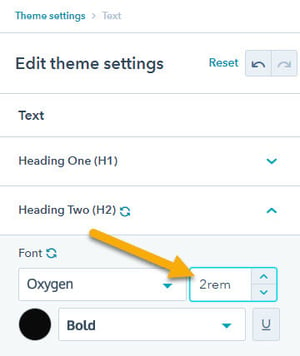
Notes:
- (1) Your theme settings may vary but should have similar settings
- (2) Your font sizes may use another value, like pixels. If you wish to use rem you'll need some development knowledge to update your theme's fields.json file with the new unit.
Header and footer
How do I update the logo in my header?
To update your logo in the header, go to any page that uses the theme and click on the header global group. You'll be prompted to open it with a message that says "Any changes made to this content will apply to all instances of it in your account. You'll be able to preview your changes on all assets before publishing.", click on "Open in global content editor".
Once you're in the editor, click on the logo to update it. A logo image module will open in the sidebar that will allow you to replace it.
If you've deleted the logo in the past and can't find it, click on the "Contents" tab in the sidebar which should give you a list of all of the modules in the header global group. Click on the "Logo" module to update it.
Link to this answer: How do I update the logo in my header?Templates, sections and modules
Which templates are available in the Conference theme?
You can see an up-to-date list of templates for the Conference theme on the demo website, under Theme > Templates in the header navigation.
Link to this answer: Which templates are available in the Conference theme?Which sections are available in the Conference theme?
The Conference theme includes six sections, which you can add from the Sections tab in the page editor:
- Hero Banner
- Hero Banner - Home
- Hero Banner - Agenda Item
- Highlights
- FAQs
- Call-to-Action Banner
If you have feedback on the sections or want to request a new one, email me at support@stephanieogaygarcia.com.
Link to this answer: Which sections are available in the Conference theme?Which custom modules are available in the Conference theme?
You can see an up-to-date list of custom modules for the Conference theme on the Custom Modules page of the demo website.
If you have feedback on the modules or want to request a new one, email me at support@stephanieogaygarcia.com.
Link to this answer: Which custom modules are available in the Conference theme?How do I customize modules?
Each custom module in your theme has many options to customize both the content and styling.
To update your module, go into the editor of any page and click on it. In the sidebar you'll see two tabs: Content and Styles.
- The Content tab houses the actual content in your module (e.g. the text on a card or the image in a logo slider)
- The Styles tab contains styling options specific to that module (e.g. edit the background colour, typography, spacing... etc.)
In general, styling is inherited from your theme settings. However, if you update the styling in a module it'll override any theme settings. Therefore, in order to make sure that your website is as easy as possible to update across the board in the future, try using theme settings where possible so that you don't have to go in and update each module at a later stage.
Link to this answer: How do I customize modules?Why is the Blog Posts module empty?
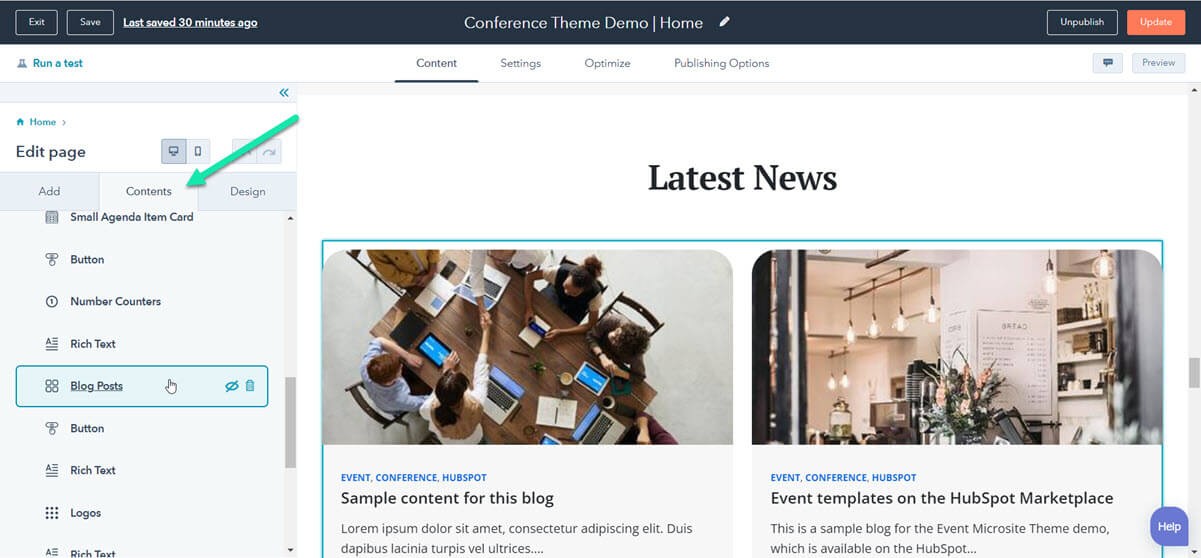
When you first add the Blog Posts module to a page, it stays blank until you choose which blog to show posts from in the module's settings.
If you've clicked away and can't find the settings again, either:
- refresh the page; you should see a Select Blog button on the module, or
- open the Contents tab in the editor's sidebar, which lists every module on the page, and click Blog Posts.
How do I change the global text on blog posts?
The Conference theme's blog post template doesn't use drag and drop, so its global text is set at the top of the template file instead.
- Create a child theme if you haven't already. Marketplace theme files can't be edited directly.
- Click More, then go to Content > Design Manager.
- Open your child theme's folder, then templates > blog-post.html.
- At the very top, under "Update Blog Post Content", follow the instructions to edit the text.
Structured data
What structured data is built into the Conference theme?
Structured data (schema) is code that tells search engines what's on a page, such as an event's name, location and dates. Search engines may use it to show your content as a rich result, although that isn't guaranteed.
There are several areas where you will find structured data:
- Built into certain modules:
- Accordion (FAQ) module. When enabled, it uses the FAQPage schema and adds content from the following fields:
- "Question" field - name
- "Answer" field - acceptedAnswer
- All event modules. These include the Agenda, the Large Agenda Item Card, the Small Agenda Item Card and the Hero Banner - Agenda Item module (used in the Hero Banner - Agenda Item section). When enabled, these use the Event schema and add content from the following fields:
- "Title" field - name
- "Summary" field - description
- "Location" field - location
- "Start Date and Time" field - startDate
- "End Date and Time" field - endDate
- "Speakers" group - performer
- "Full Name" field - name
- Accordion (FAQ) module. When enabled, it uses the FAQPage schema and adds content from the following fields:
- On your blog posts page. This uses the Article schema and adds content from the following:
- Title - headline
- Author - author
- Name - name
- Author Page - url
- Publish Date - datePublished
- Modified Date (hidden) - dateModified
- Image - image
- In certain schema modules. The Event Schema / Structured Content module uses all the recommended fields for the Event schema:
- Title - name
- Description - description
- Start Date and Time - startDate
- End Date and Time - endDate
- Organizer - organizer
- Name - name
- URL - url
- Attendance Mode - eventAttendanceMode
- URL - url
- Image - image
- Location - location
- Name - name
- Address - address
- Street Address - streetAddress
- Locality - addressLocality
- Region - addressRegion
- Postal Code - postalCode
- Country - addressCountry
- URL - url
- Status - eventStatus
- Previous Start Date - previousStartDate
- Performer - performer
- Name - name
- Offers - offers
- Name - name
- URL - url
- Currency - priceCurrency
- Price - price
- Low Price- lowPrice
- High Price - highPrice
- Availability - availability
- Valid From Start Date and Time - validFrom
How do I turn structured data on or off in a module?
In any module that includes structured data (see the list), open the Schema/Structured Data group and check or uncheck Enable.
Turn it off if you're using the module for something other than what its schema describes, for example an agenda card that isn't a real event. Search engines can penalise schema that doesn't match the content.
Link to this answer: How do I turn structured data on or off in a module?How do I use the Event Schema module?
The Event Schema / Structured Content module adds event details to the page's code for search engines; it doesn't show anything on the page.
To use the module, add it anywhere to the page (no content will be displayed), and add as much information as possible.
Google requires that you populate the following properties:
- Location
- Location Address (if the event is in a physical location)
- Location URL (if the event is online)
- Name
- Start Date
And recommends that you populate the following properties:
- Description
- End Date
- Event Attendance Mode
- Event Status
- Image
- Location Name
- Offers
- Availability
- Price
- Currency
- Valid From
- URL
- Organizer
- Name
- URL
- Performer
- Name
- Previous Start Date (if rescheduled)
Why does Google Search Console show warnings for my events?
Each schema type has many optional properties, but only some are required for a rich result. The theme's modules mostly use the required ones, so Google may suggest more.
Warnings aren't errors: your page can still qualify. To fill in the extra details, add the Event Schema module to the page.
Link to this answer: Why does Google Search Console show warnings for my events?How can I test my page's structured data?
Enter your page's URL in Google's Rich Results Test. To check every schema type, not just those Google shows as rich results, use the Schema Markup Validator.
Link to this answer: How can I test my page's structured data?Buttons and other elements
How do I style a Call-to-Action (CTA) button with my theme's button styles?
Why not use HubSpot's own CTA styling?
When you create a call-to-action (CTA) in HubSpot, you can style each button by hand. That works, but:
- you have to style every CTA one by one
- it may not match your brand exactly
- if you change your website's styling later, you have to update every CTA
Instead, use your theme's button styles. Every theme I build has a button CSS class that uses the button styling from your theme settings.
Using the theme's button style in the CTA tool
- Click More, go to Marketing > CTAs, then click Create.
- On the Embeds and Buttons tab, go to Advanced > Embedded HTML.
- Set where the button links to and enter the button text.
- Click Advanced and enter
buttonunder Custom CSS Classes.
When you add this CTA to a page, it uses your theme's primary button style. The page editor doesn't always show it, but the preview and the live page will.
Using the legacy CTA tool
If your account still has the legacy CTA tool (accounts created after March 17, 2025 don't), the steps are:
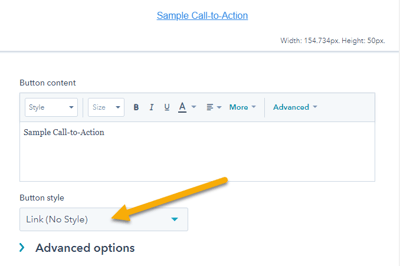
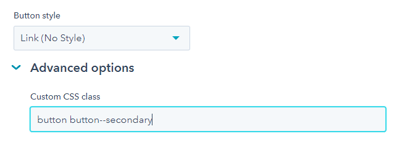
- Set the Button style dropdown to Link (No Style):
- Open Advanced Options.
- Enter
buttonin the Custom CSS class field: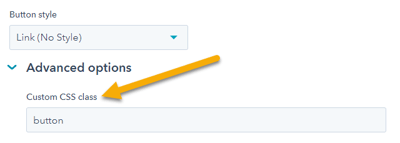
Other button styles
Many of my themes have extra button styles, such as button--secondary or button--outline. Add them after button, separated by spaces. For example, button button--secondary button--outline gives an outlined button in your theme's secondary colour.
Not sure which button styles your theme has? Email support@stephanieogaygarcia.com.
Link to this answer: How do I style a Call-to-Action (CTA) button with my theme's button styles?Which button styles are available in the Conference theme?
Button module
Drag the Button module onto the page and add the link and text on the Content tab. On the Styles tab, set Style Type to:
- Theme Buttons to choose one of the theme's button styles (solid, outline, arrow or text), a theme colour and the alignment, or
- Custom for full control over the background, border, corners and spacing.
CSS classes for CTAs
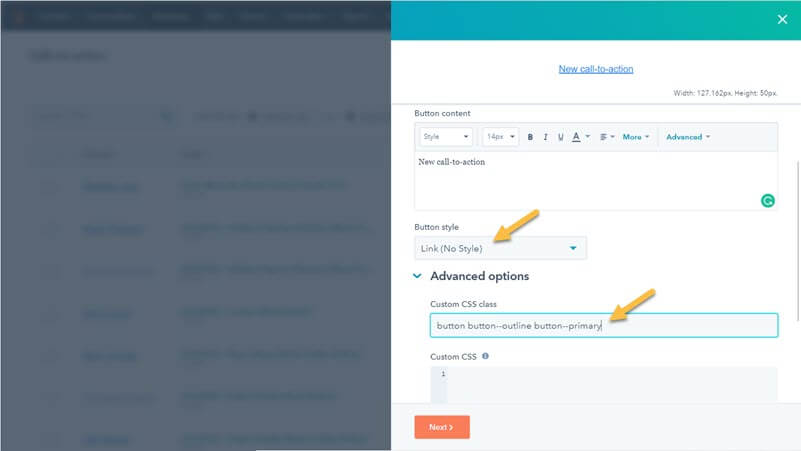
To give a HubSpot CTA the theme's styling, follow the CTA steps and enter three classes, separated by spaces:
button- a style:
button--solid,button--outline,button--textorbutton--arrow - a colour:
button--black,button--primary,button--secondary,button--dark-grey,button--light-greyorbutton--white
For example, button button--outline button--primary gives an outlined button in your primary colour.
System pages
How do I set up my system pages (404, 500, password and subscription pages)?
System pages are the pages HubSpot generates for you, such as error pages, password prompts and email subscription pages. The theme includes templates for them, but you need to select them in your settings (HubSpot's guide).
Error, password and search results pages
- Click the settings icon in the top navigation bar.
- In the left sidebar, go to Content > Pages.
- Click the System Pages tab.
- Choose your templates for the 404 error page, 500 error page, Password prompt page and Search results page.
- Click Save.
Email subscription pages
- Click the settings icon in the top navigation bar.
- In the left sidebar, go to Marketing > Email.
- Click the Subscriptions tab.
- Choose your templates for the Subscription preferences page, Unsubscribe backup pages and Subscription update confirmation page.
- Click Save.
Custom system templates only apply to your primary domain. Other connected domains use the template set as Default for all domains.
Link to this answer: How do I set up my system pages (404, 500, password and subscription pages)?Support
How can I get support?
If you're still stuck, or have any questions or feedback, email me at support@stephanieogaygarcia.com. Let me know which theme or module you're using and, if you can, include a link to the page.
Link to this answer: How can I get support?