
Documentation
Scrolling Content Banner module
Place text, images, videos, call-to-action buttons or any other content that can be added to a rich text field into this module and watch it scroll!
Setup and layout
How do I make the banner full width (edge to edge)?
HubSpot Drag-and-Drop Areas
If you are using a HubSpot theme with drag-and-drop areas, you can set the section containing your module to be full-width with no spacing, so that your module takes up the full width of the page.
To do this:
1. Drag or add the Scrolling Content Banner module to a new section by finding it in the modules sidebar and dragging it onto the page.
2. When you click on the Section, it should open up a toolbar in your sidebar that has options to adjust the section's alignment and spacing:
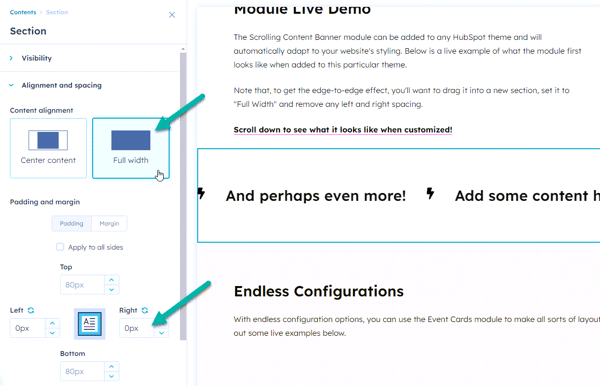
If clicking on the section doesn't open these settings automatically, you can also click into the Contents tab in your sidebar to find the section and open its settings.
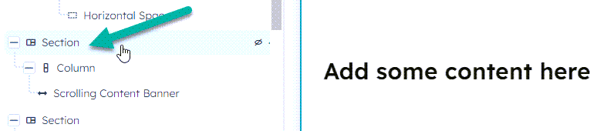
3. Under the section's settings, set the "Content alignment" to "Full width" and under "Padding and margin", set both the left and right padding to 0. You might also want to ensure that when you toggle the "margin" view, both left and right margins are also set to 0.
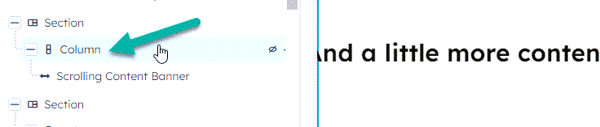
4. If there is still spacing between your module and your page, look at the Contents tab in your sidebar to see if your module is added under a column, and make sure the left and right padding and margins there are also set to 0.
How do I fix the spacing if there's too much space between items?
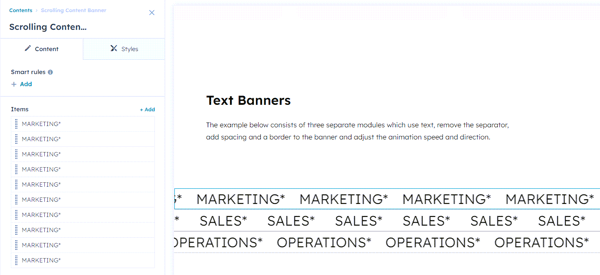
If you only have one or a few items, you might notice there's a lot of space between them.
To fix this, you can always duplicate items. For example, in the "Text Banners" example on the module's demo page, the word "MARKETING*" is repeated multiple times to fill up the page:
How do I change the banner's speed?
To adjust the banner's speed, click into the module's Styles tab and into the Animation tab.
Here you'll find the option to adjust the Speed.
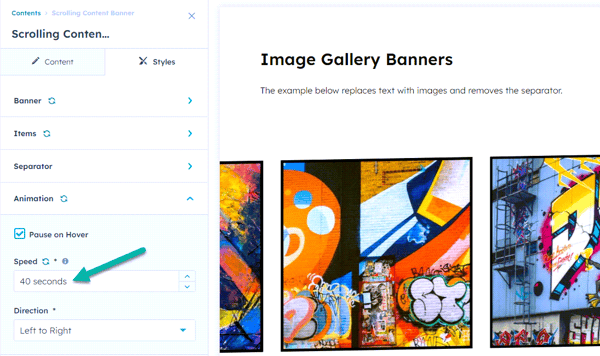
The more seconds you add, the slower the scroll will be, decrease the speed as you add more items.
The perfect speed will depend on how much content you've added and how long each item is so experiment as needed.
Be sure to double-check that your chosen speed works on both desktop and mobile!
Link to this answer: How do I change the banner's speed?How do I add images without links?
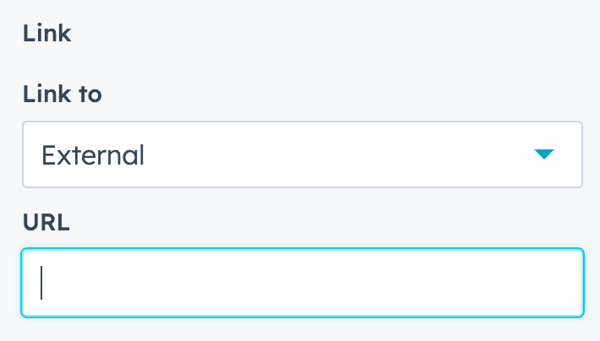
The link field is optional, so if you leave the Link To as "External" and leave the URL field blank, you'll have the images with no link:
Configuration options
Which options can I configure in the Scrolling Content Banner module?
Below is a list of all the customization options available for the Scrolling Content Banner module.
Content:
- Items (repeater, add as many as you need!)
- Content (rich text)
- Link (link)
- Separator
- Type (choice) - Choose between Icon, Image, Text or None
- Icon (icon)
- Height (number)
- Image (image)
- Text (text)
- Advanced
- Custom CSS Class
- Custom CSS
Styles:
- Banner
- Border
- Border
- Background
- Color
- Spacing
- Spacing
- Transform
- Skew
- Border
- Items
- Background
- Color
- Border
- Border
- Corner
- Radius
- Spacing
- Spacing
- Spacing Between Items
- Text
- Font
- Color (On Hover)
- Background
- Separator
- Fill
- Color
- Text
- Font
- Spacing
- Spacing
- Fill
- Animation
- Pause on Hover
- Speed
- Direction
Support
How can I get support?
If you're still stuck, or have any questions or feedback, email me at support@stephanieogaygarcia.com. Let me know which theme or module you're using and, if you can, include a link to the page.
Link to this answer: How can I get support?Changelog
What's changed in each version?
Version 3 (May 10, 2024)
Fixed:
- Updated code to hide custom bullet points that use before/after pseudo-elements.
Added:
- All colour and font fields inherit from theme (adjust as needed from Styles)
[HubSpot Marketplace requirement]
Version 2 (Jun 16, 2023)
Fixed:
- Updated generic CSS classes (”no-list”) to prevent conflicts with theme classes.