
Documentation
Video Gallery module
Create a video library for your HubSpot website in minutes, where you can mix and match HubSpot Video, HubSpot Files/Media Bridge, YouTube and Vimeo.
Structured data
How does the structured data (schema) work?
Structured data/schema is code that's added to your website to help search engines understand the data on your page.
This module uses the VideoObject and ItemList structured data, which tells the search engine that there are multiple videos listed on your page. Note that Google state that the option to showcase multiple videos is currently limited to a small set of providers.
To enable structured data/schema on your Video Gallery module, click into the Contents tab and open the "</> Schema/Structured Data" tab, then select the "Enable Schema" option:
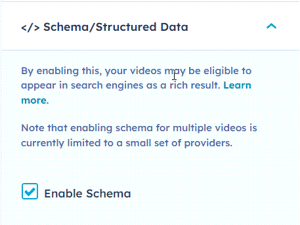
Don't forget to save after doing so!
If you want to test your page for structured data, you can use Google's Rich Results Test or the Schema Markup Validator.
Link to this answer: How does the structured data (schema) work?Configuration options
Which options can I configure in the Video Gallery module?
Below is a list of all the customization options available for the Video Gallery module.
Content:
- Videos (repeater, add as many as you need!)
- Details
- Title (text)
- Description (text)
- Upload Date (date)
- Duration (text)
- Category (text)
- Video
- Type (choice) - Choose between HubSpot File / HubSpot Video / YouTube / Vimeo
- Video - add the video according to the type selected above.
- Thumbnail
- Thumbnail (image)
- Details
- Schema/Structured Data
- Enable Schema (boolean)
- Advanced
- Custom CSS Class (text)
- Upload Date - Format (text)
- Default Text
- Close Button (text)
Styles:
- Display Settings (choose which items to display)
- Display Category
- Display Duration
- Display Title
- Display Description
- Display Upload Date
- Layout
- Cards Per Row (Large Screens ≥992px)
- Cards Per Row (Medium Screens ≥768px)
- Cards Per Row (Small Screens <768px)
- Cards
- Background
- Color
- Corner
- Radius
- Spacing
- Padding
- Space Between Cards
- Background
- Details
- Spacing
- Padding
- Category
- Animation
- Always Show
- Text
- Font
- Animation
- Duration
- Animation
- Always Show
- Text
- Font
- Animation
- Title
- Text
- Heading Level (H1 - H6)
- Font
- Text
- Description
- Text
- Font
- Text
- Upload Date
- Text
- Font
- Text
- Spacing
- Thumbnail
- Corner
- Radius
- Size
- Aspect Ratio (16:9 (Widescreen), 9:16 (Vertical), 1:1 (Square), 4:3 (Fullscreen), 21:9 (Cinematic Widescreen))
- Corner
- Play Icon
- Animation
- Always Show
- Background
- Color
- Color (On Hover)
- Icon
- Color
- Color (On Hover)
- Animation
- Modal/Pop-Up
- Overlay
- Background
- Color
- Background
- Close Button
- Fill
- Color
- Fill
- Overlay
Support
How can I get support?
If you're still stuck, or have any questions or feedback, email me at support@stephanieogaygarcia.com. Let me know which theme or module you're using and, if you can, include a link to the page.
Link to this answer: How can I get support?